You may enable email notifications for any user that is part of the approval configurations. All the email configuration options are contained with the Approvals tool.
Types of notifications
|
Email Type |
What it provides… |
|---|---|
|
Send Email Pending Inbox |
There are invoices waiting for your approval. |
|
Send Email Pending Information Inbox |
There are invoices that need your review, approval or for you to provide missing information in order to be paid. |
Select users who should receive the notifications
The first step is to select the users who should receive email notices,
-
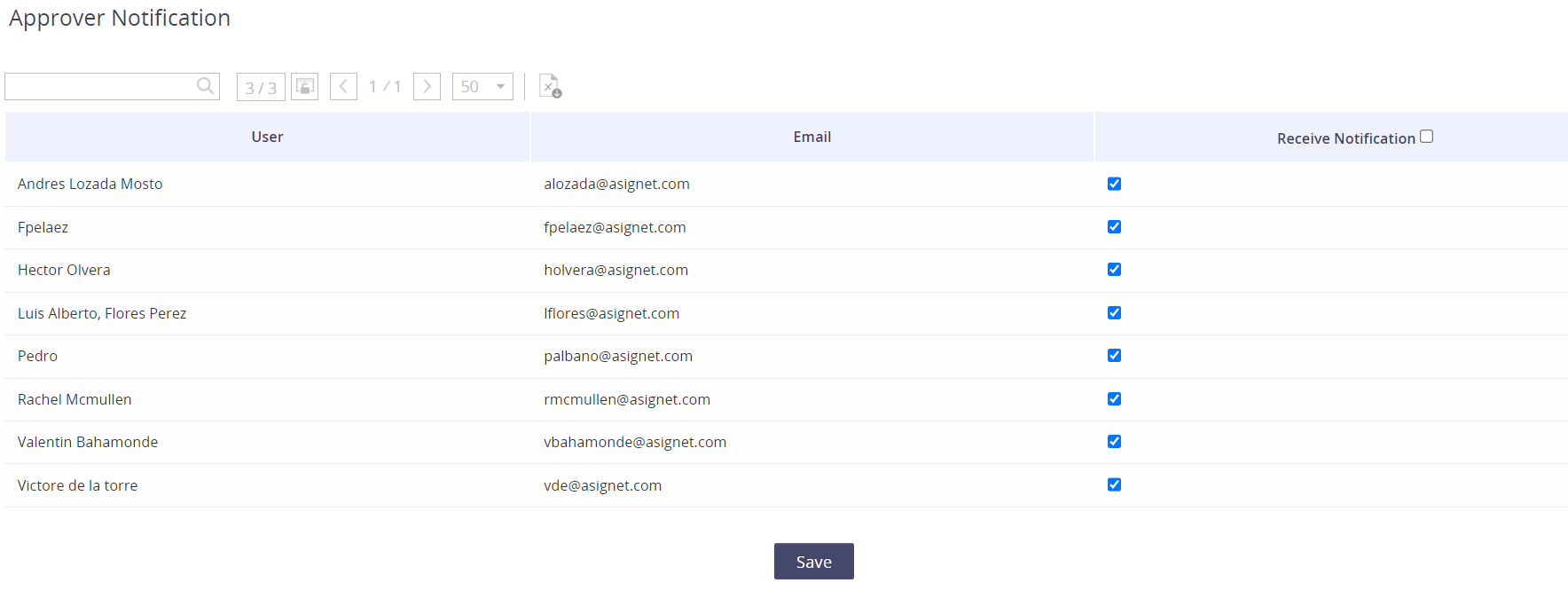
When Approvals, click on the Approver Notification button.

-
Check the box for the users who should receive the email notifications and then click Save.
Determine the email type and frequency
-
Click the Schedule Notification button.

-
Click New

-
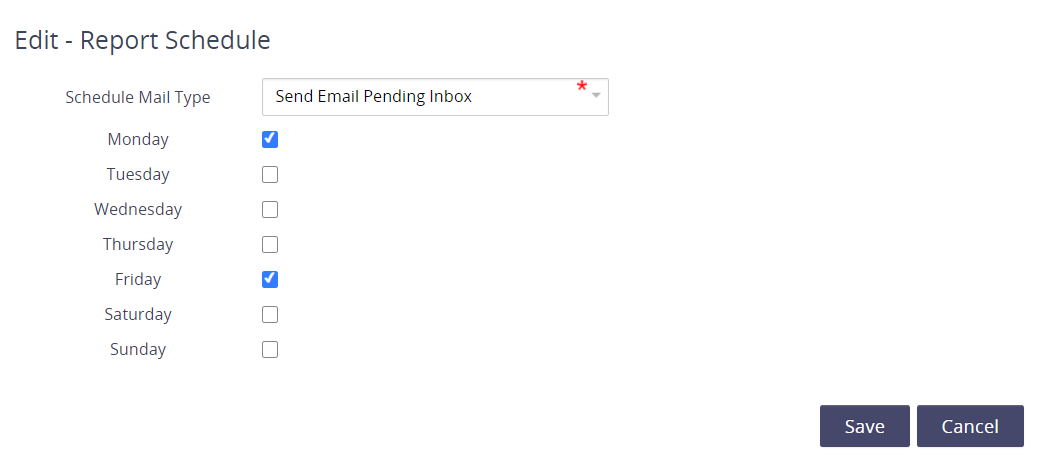
Select the Mail Type and determine the frequency.
-
Click Save.
Send an email now
For any of your configured email schedules, you can click the envelop icon and generate an email now.

Edit your report schedule
Click on the pencil icon under the Edit icon to change the frequency.

Add a customized message to your email
-
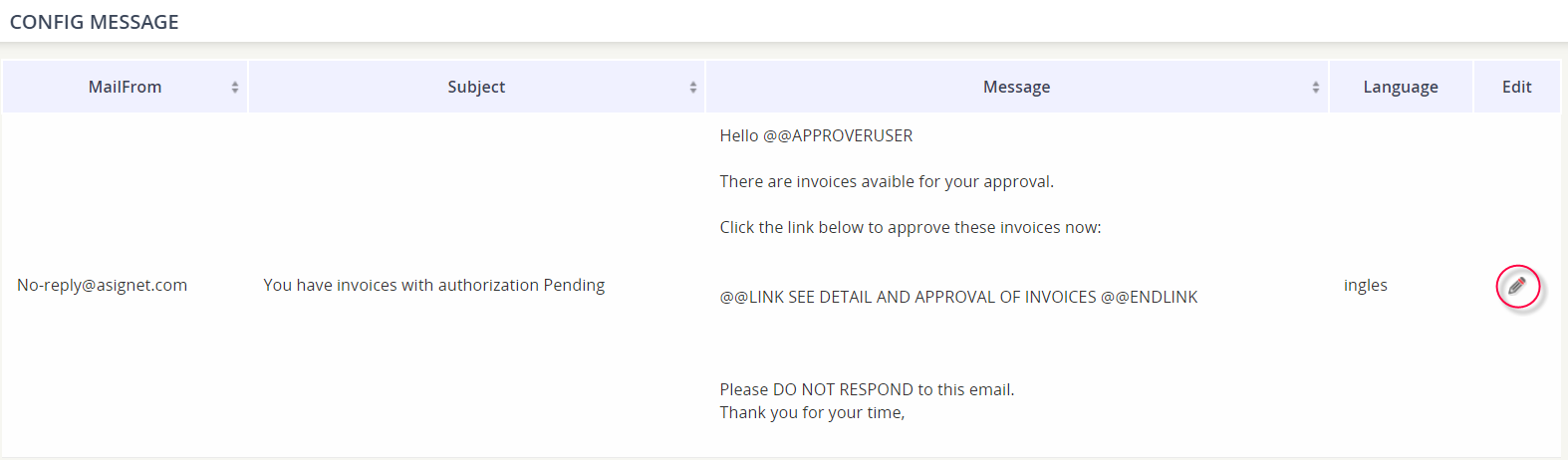
Click on the pencil icon under the Config Message column.

-
Click the Edit icon for the custom message that was configured for the email type.
-
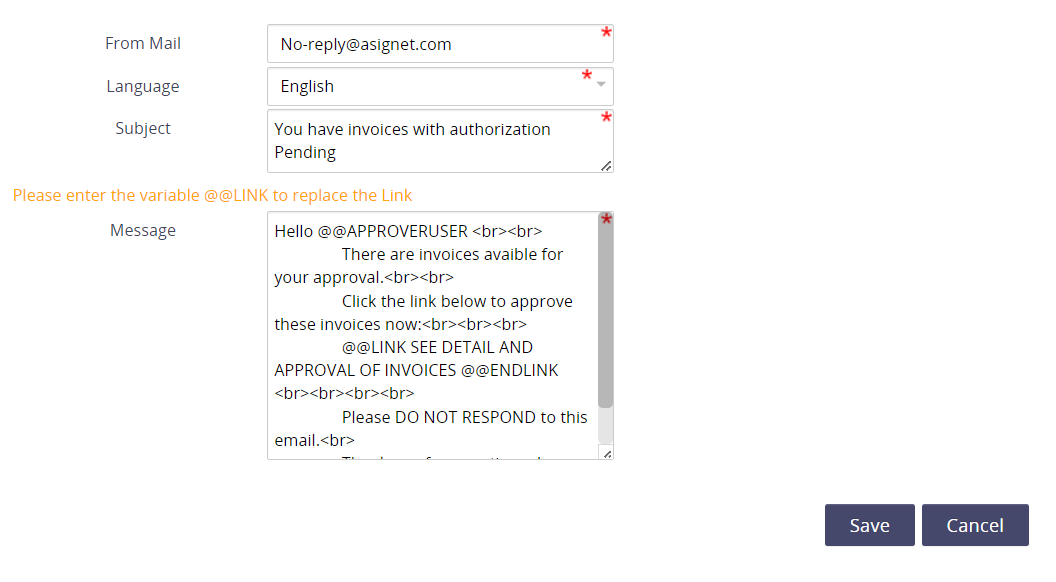
Edit the FROM address, Subject Line, Email Body, and/or Language. Click Save to keep the changes.