
Our Implementation Team will have already created your GL Types; however, we understand that sometimes our clients need to make adjustments to their GL code structure & organization. We’d recommend talking with your Client Success Manager before you make any major changes in this module.
How to create a GL Type
-
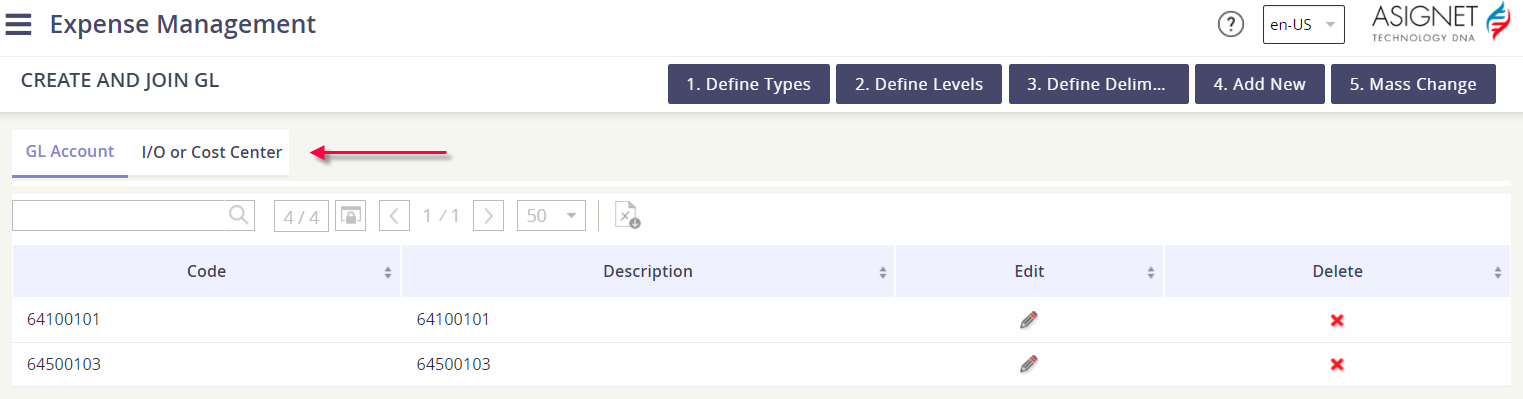
When in the Ledger Codes tool, you will see the existing GL Types as tabs at the top of the page. Make sure you aren’t creating a duplicate Type, and remember you can only have three GL Types in the platform.
-
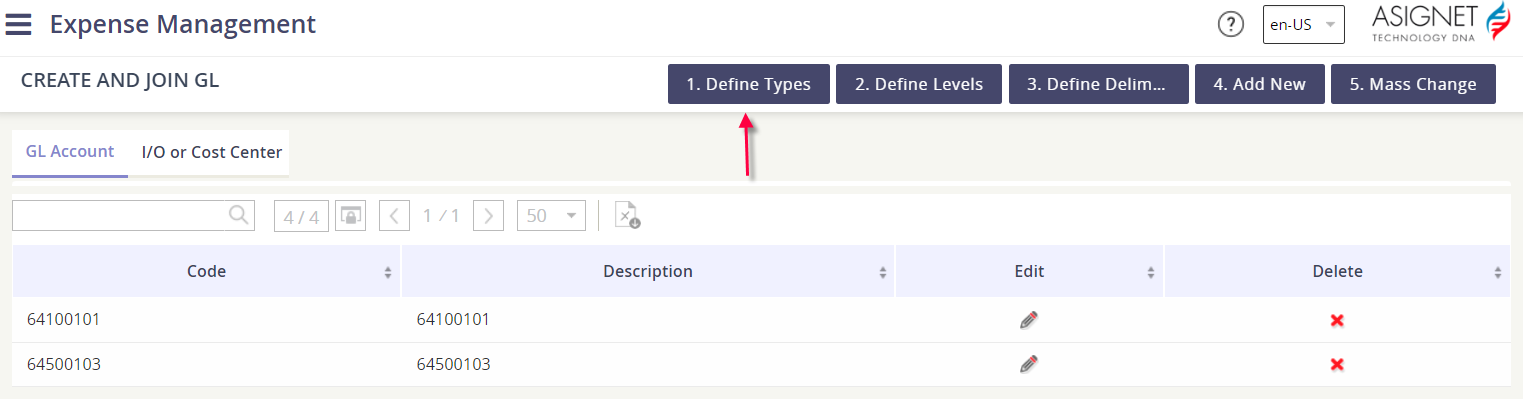
Click the action button 1. Define Types.
-
Click the action button New Type.

-
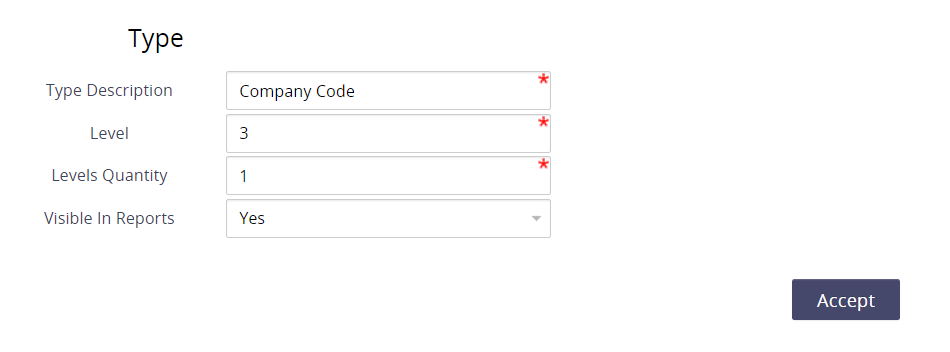
Define the GL Type and then click Accept to save your changes.
-
Type Description: this is the label of the Type
-
Level: Define the order in which it should appear. Valid values are: 1, 2, or 3.
-
Levels Quantity: how many GL Levels will be part of this Type. Valid values are numbers 1 through 10.
-
Visible in Reports? Yes or No. Do you want to report on the GL Codes used within this Type?
-
How to edit an existing level
-
Click the action button 1. Define Types.
-
Click on the pencil icon under the Edit column for the GL Type that you need to update.
-
Update the description, level, levels quantity, or visible in reports fields.
-
Click Accept to save your changes.

How to delete a GL Level
Deleting a GL Type will delete all associated GL Levels & GL Codes. You cannot undo this action.
-
Click the action button 1. Define Types.
-
Click on the red X icon under the Edit column for the GL Type that you want to delete.
-
Confirm the action and click the Delete button.
