
This report gives you a live invoice processing report, tied to your account service level agreement (SLA), and past due balances.
How to access the Invoice Trending Report
-
Click on Reports.
-
Select Invoice Trending Report from the sub-meu.
Navigating the Invoice Trending Report Report
Use the report tabs to see your invoice data in different ways:
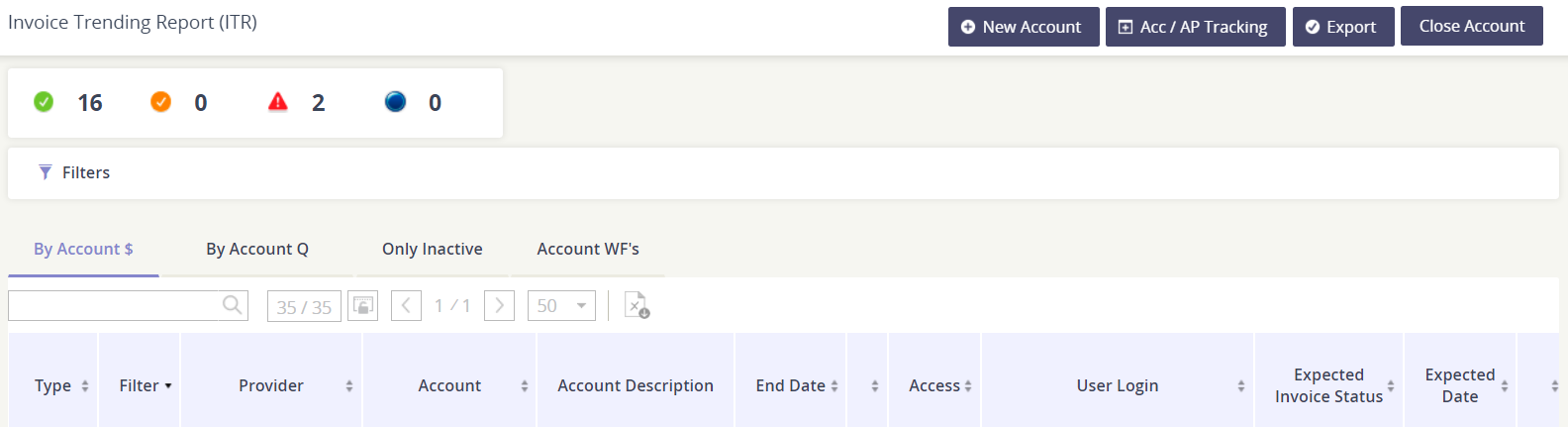
Columns available in the By Account $ tab
|
Column Name |
Description |
|---|---|
|
Provider |
The vendor. |
|
Account |
The account number. |
|
Account Description |
The client provided description. |
|
End Date |
The last bill date for the invoice. |
|
Access |
Displays the method of getting the invoice.
|
|
User Login |
Displays the login ID for the invoice. |
|
Expected Invoice Status |

Shows the expectancy for the invoice. Hover over the icon to display the day of the month the invoice is expected.
|
|
Expected Date |
Displays the day of the month the invoice is expected. |
|
Last Date |
|
|
Justification |
|
|
Q Invoices |
This is the number of invoices processed for the account. Click the number to display a list of all invoices processed in a pop-up window. 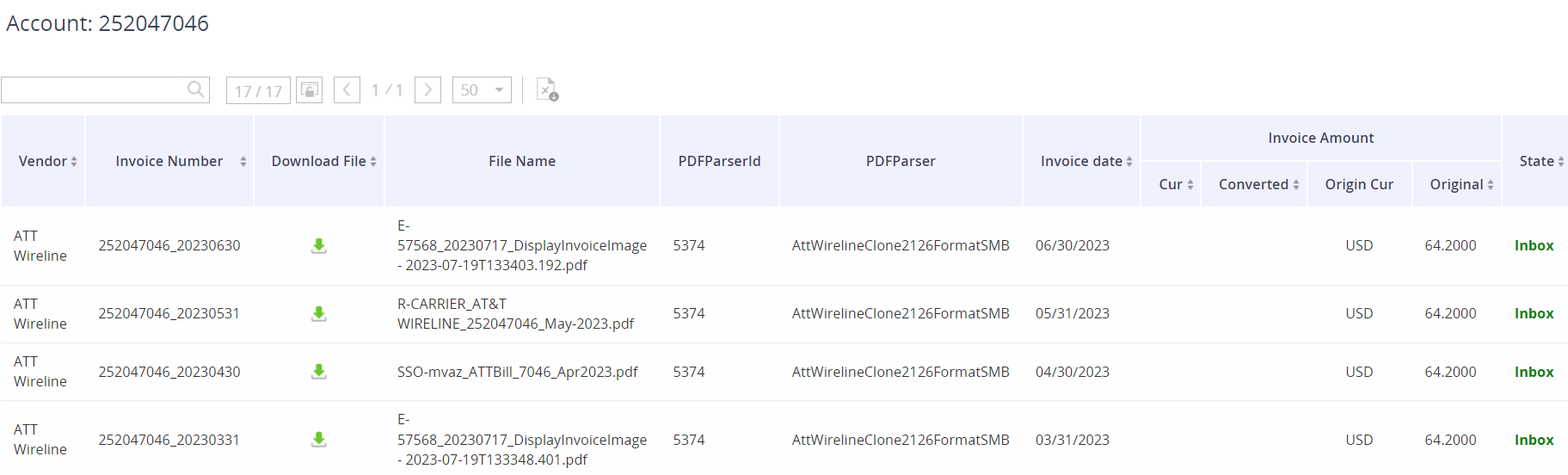
|
|
Past Due |
Is there a past due on the account? Yes or No. |
|
AP Match |
Shows if the account matches the accounts payable (AP) accounts provided by the client during implementation. Hover over the icon to display the account number for the invoice. |
|
Monthly Trend - 6 Months |
Shows the invoice amount for the last six (6) months. |
|
Invoice in Error |
Displays a warning indicating an invoice has problems matching the Header and Details information. Click the warning to show the issue details. |
|
Last AW |
Displays the date that the Asignet robot last checked for an invoice (if it is accessed by portal). |
|
Rate Run |
Displays the average run rate of the invoice for the period in the trend. |
|
Last Comment |
Click the text to view the last comment related to the invoice. |
|
Comment History |
Click the magnifying glass icon to search the comment history. |
|
ATD - Status |
What is the status of the invoice? Typically reflects the validation type (i.e. lack of configuration). |
|
ATD - Modified User |
The last user to modify the record. |
|
ATD - Modified Date |
The last date the record was updated. |
|
ADT - Comment |
Comments made by the Asignet user modifying the record. |
|
Access Type |
How the invoice is received (EDI, manual, portal, or email). |
|
NDD |
|
Columns available in the By Account Q tab
This report provides a summary by the account quantity per vendor.
|
Column Name |
Description |
|---|---|
|
Provider |
The vendor. |
|
Account |
The account number. |
|
End Date |
Is the account closed? If yes, the closed date will be populated. |
|
Q Inv |
The total quantity of invoices received. Click on the value to see the invoice detail in a pop-up window. 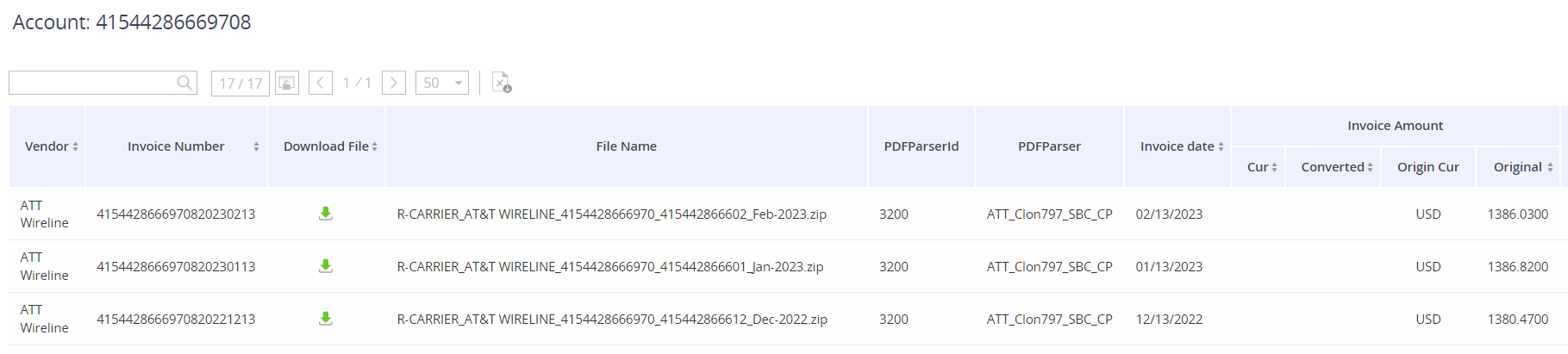
|
|
Monthly Trend - 6 Months |
The number of invoices received for a given month. |
|
Total |
|
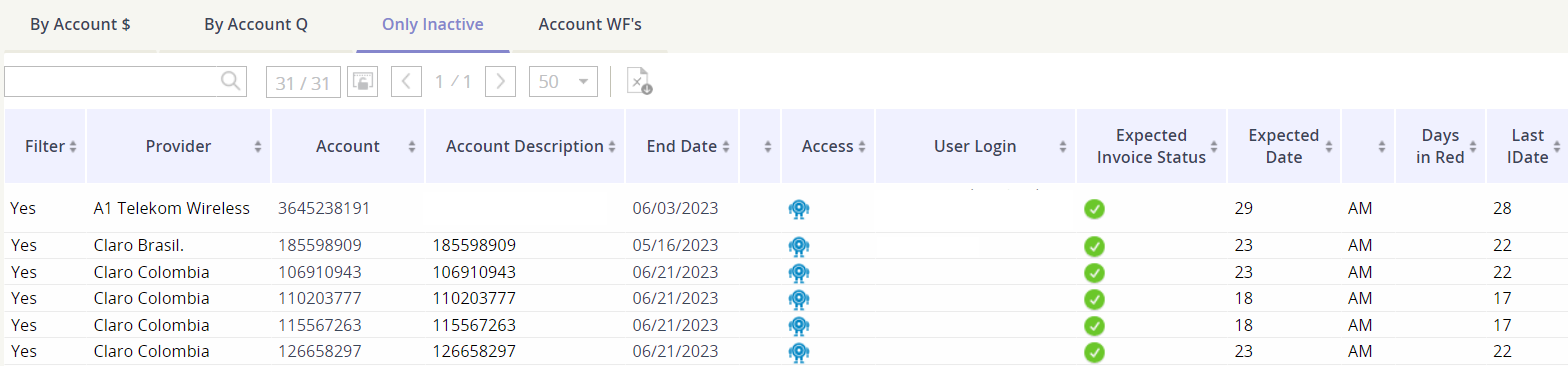
Columns available in the Only Inactive tab
This report is auto-filtered for inactive accounts.
|
Column Name |
Description |
|---|---|
|
Filter |
|
|
Provider |
The vendor. |
|
Account |
The account number. |
|
Account Description |
The client defined description for the account. |
|
End Date |
Is the account closed? If yes, the closed date will be populated. |
|
Access |
The invoice receipt method. |
|
User Login |
The login used to access the portal |
|
Expected Invoice Status |
Shows the expectancy for the invoice. Hover over the icon to display the day of the month the invoice is expected.
|
|
Expected Date |
The day of the month the invoice is made available by the vendor. |
|
Days in Red |
How many days the invoice is late. |
|
Last Date |
|
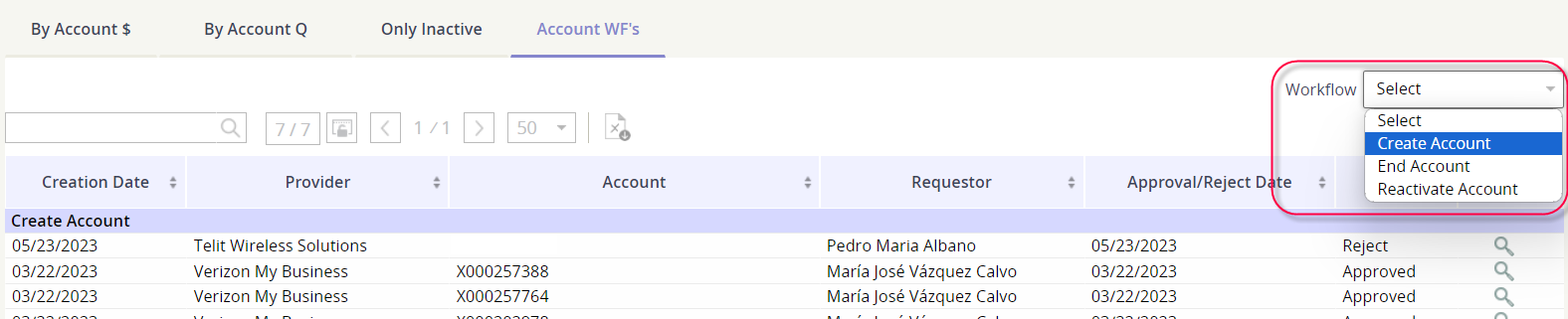
Columns available in the Account WF’s tab
Focus on the workflow type by using the Workflow drop-down:
|
Column Name |
Description |
|---|---|
|
Creation Date |
When the account was created. |
|
Provider |
The vendor. |
|
Account |
The account number. |
|
Requestor |
Who initiated an account workflow. |
|
Approval/Reject Date |
The date when the workflow was approved or rejected. |
|
Status |
What is the status? Approved or Rejected |
|
Detail |
Click on the spyglass to see all workflow activity. 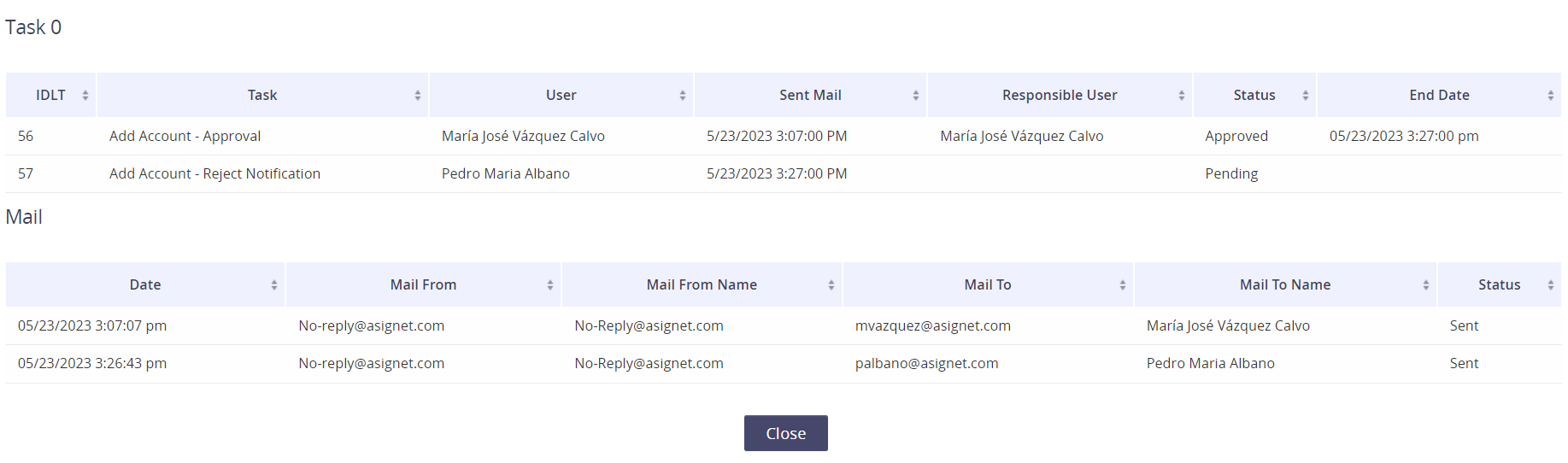
|