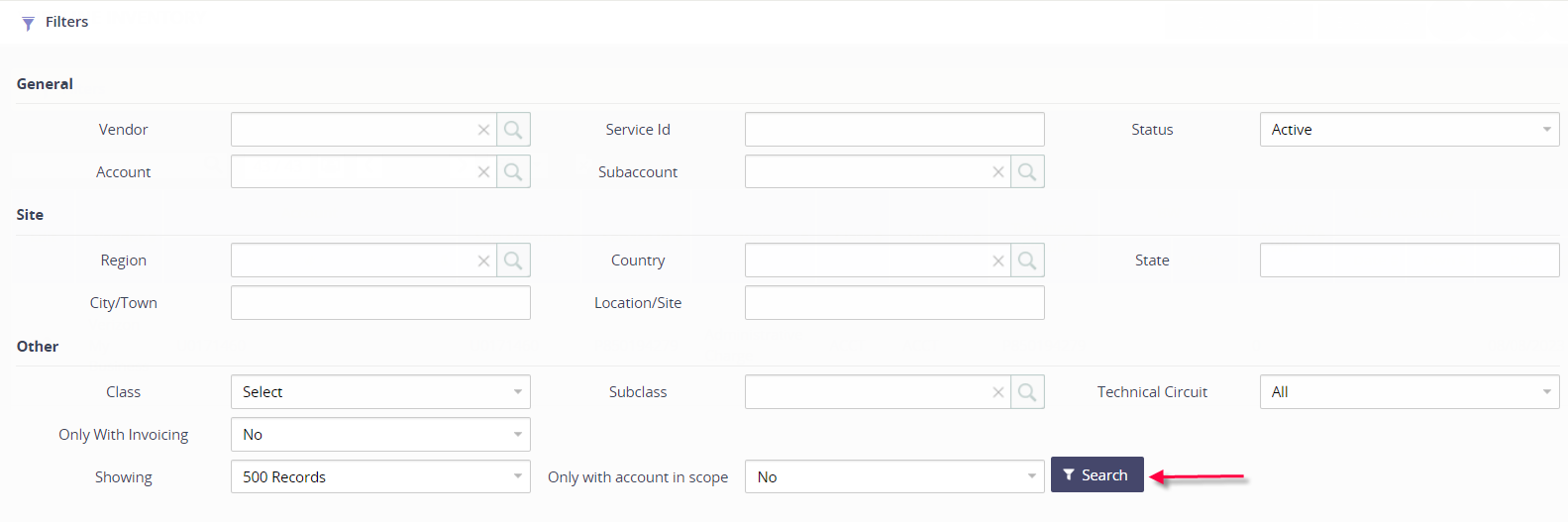
We provide three types of search functions in the Asignet platform: Quick Search, Filters, and Master Search. In this article we are focusing on the Filter features that you see in most of our modules and how to use them efficiently.
When you first arrive to a summary-list type page, you’ll most likely see a collapsed panel labeled Filters. Simply click on the panel to expose the full set of filter options - keep in mind the filter options will vary based on the module that you are currently in.
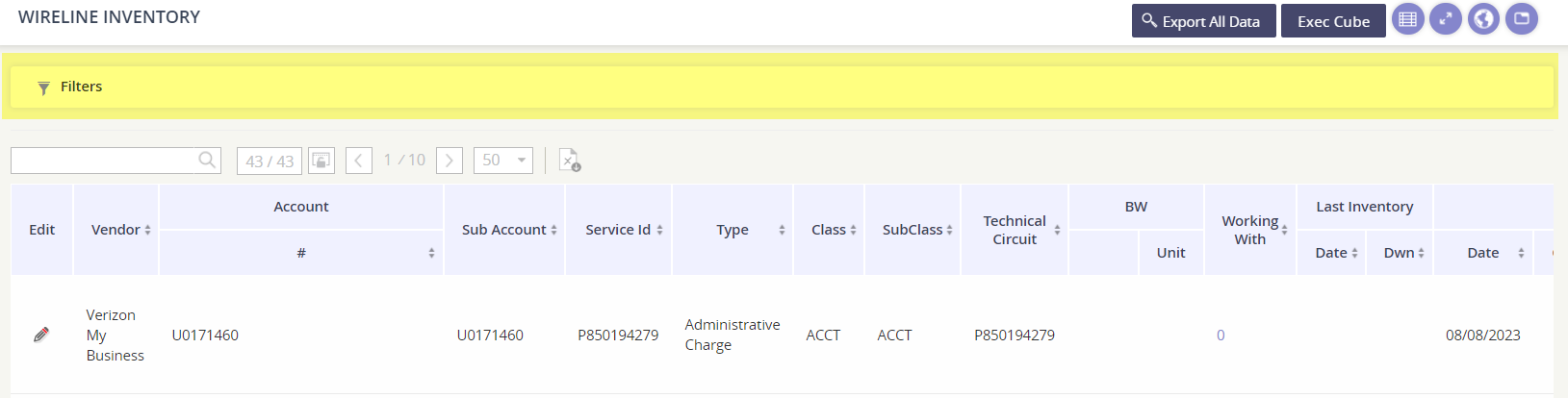
Field types in the filters
Searchable drop-down
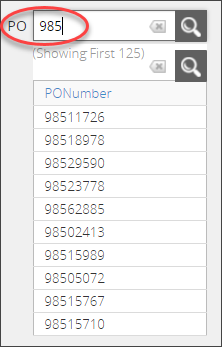
A majority of the fields in a filter provide you the opportunity to search within the field and select the value you’d like to focus on.
Enter your search criteria and then click the magnifying glass icon to show a refined list based on what the platform has found for your entry. Click on the match and confirm it is selected.
Drop-down only
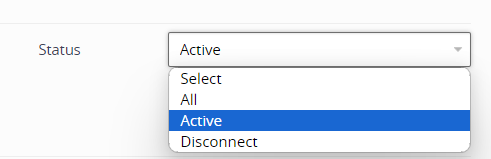
Some filters are expecting a set value, such as Status or In-Scope. You’ll select the value that best fits the criteria you are searching on:
Free Form
Some fields are so customizable or the fields support an innumerable amount of options that we provide a free form field in the filter for you to search. The Free Form fields also automatically support a wildcard search, so you can enter a particle value and the platform will do its best to return results.
For example, we’ve entered “borg” in the City/Town filter and the platform provided all inventory mapped to locations in Borgo, Borgan, Nordborg, and Skogsborg.

Apply your filter
You may search on multiple fields simultaneously. Just remember to click the Search or Apply button to initiate the filter.