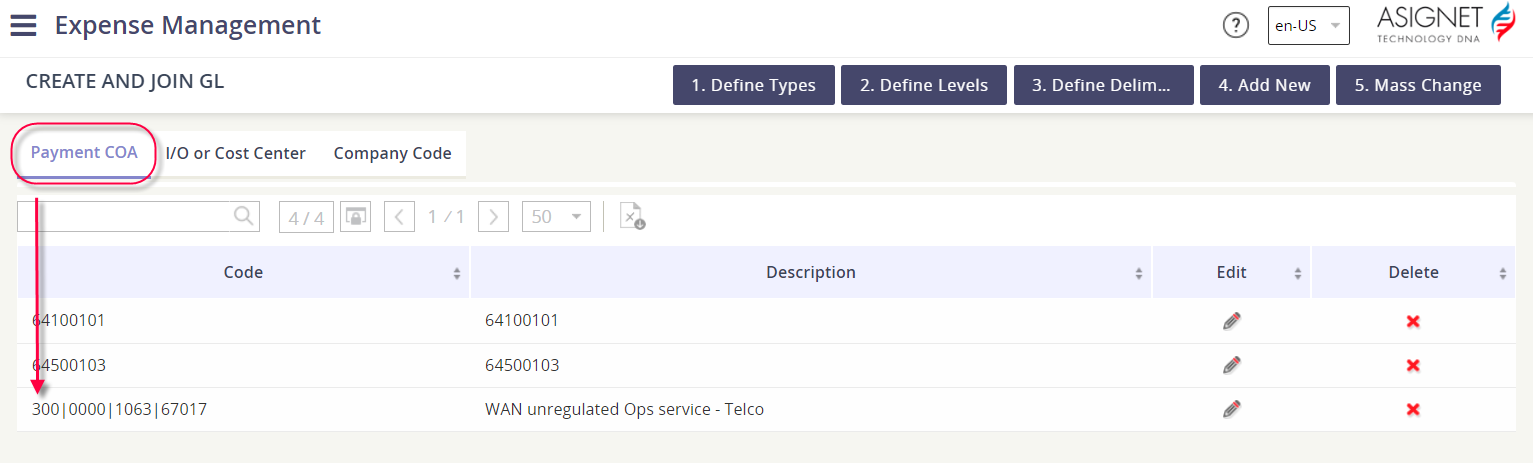
Whenever you have a new code combination you need to use to allocate charges on an invoice, you’ll need to add the GL Code string in the Ledger Codes tool.
-
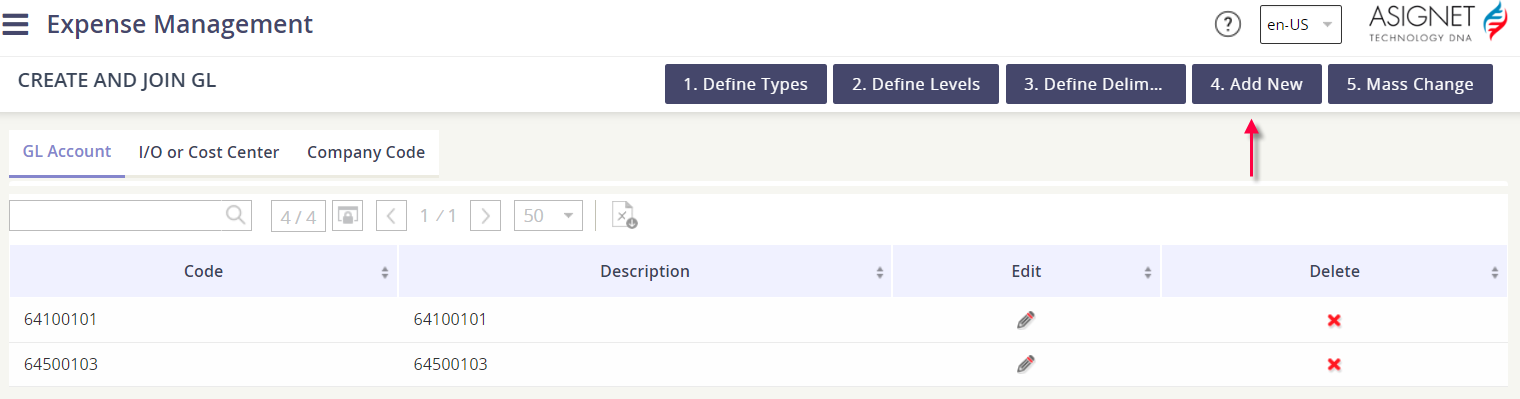
Click on the Add New action button.
-
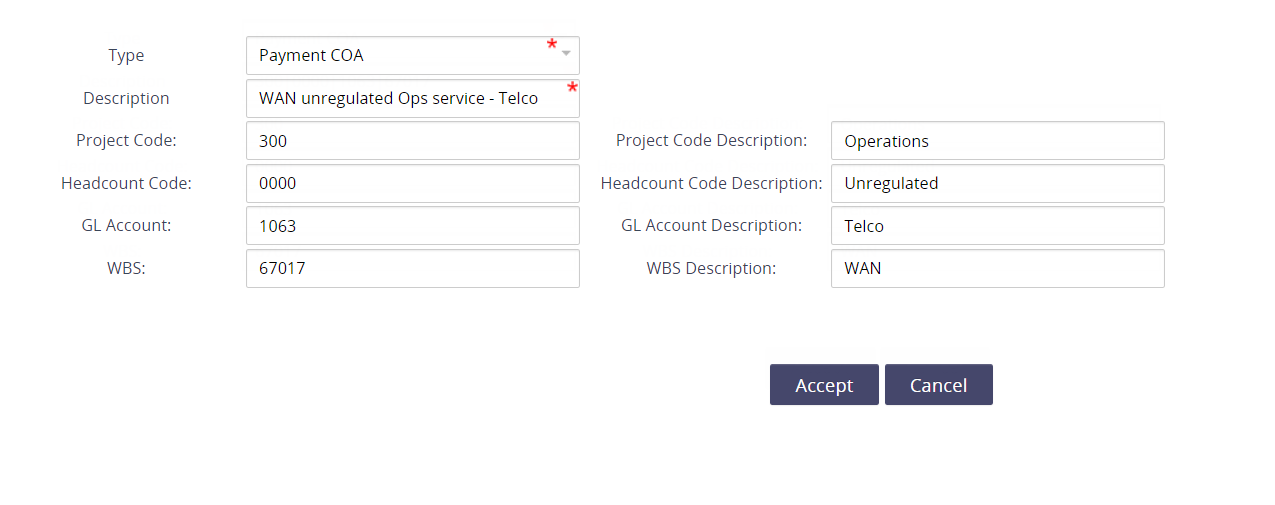
Fill out the GL Code form. In the below example, we are adding a new GL Code string under the GL Type Payment COA. Next, we can see there are four GL Levels that we can define as part of our string: Project Code, Headcount Code, GL Account, and WBS.
-
Enter the code values for each of the GL Levels, and any descriptions you’d like for each of the codes. You aren’t required to populate all 4 levels.
-
Be sure to provide a description for the whole GL Code string as well.
-
Click Accept to add the code combination as a new GL Code string.
-
Confirm you can see the newly entered code under the appropriate GL Type tab.