
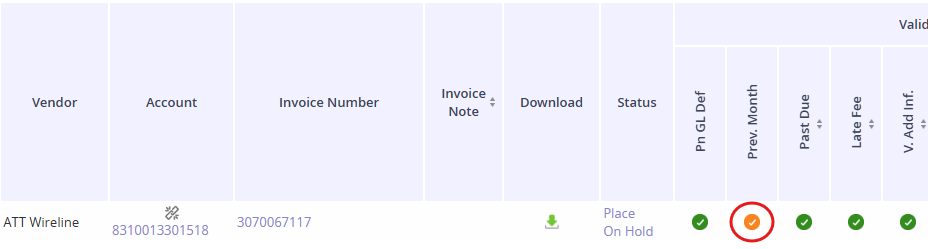
The Previous Month Validation compares the amount on the current invoice against the amount billed for that same account in the previous month. The system displays a color-coded icon in the grid under Prev. Month Validation column.
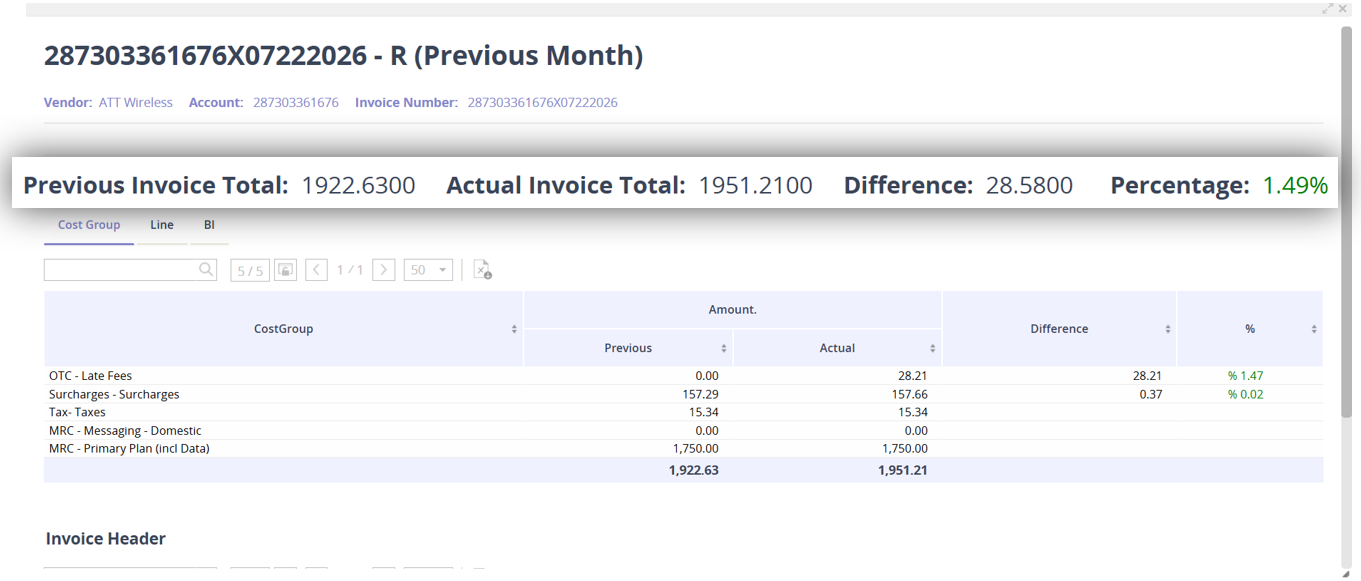
Clicking the icon opens a detail window showing the previous invoice total, the current invoice total, the dollar difference, and the percentage change, broken down by cost group, line item and the billing item.
Color Legend
|
Icon |
Color |
What it means |
|---|---|---|

|
Green check
|
The current invoice matches the previous invoice exactly or is higher by less than the low end of the configured threshold. |

|
Yellow triangle |
The current invoice is higher than the previous invoice, and the increase falls within the configured mid-range threshold. |

|
Red triangle |
The current invoice is higher than the previous invoice by more than the configured upper threshold. |

|
Orange icon |
The current invoice is lower than the previous invoice. This icon always appears for a decrease, regardless of how large or small percentage difference is. |

|
Grey icon |
The account received more than one invoice in the previous month, so the system cannot determine a single invoice to compare against. |
When Mandatory to Approve is turned on for Prev. Month in configuration, the color logic described above still calculates the underlying result, but the display behavior changes. This can be configured in Rules in the config section.
Any invoice that would otherwise show yellow or orange is now also shown with a red triangle. In effect, this setting removes the “soft warning” tiers and treats anything other than a green match as requiring mandatory review before the invoice can proceed.